OpenAI officially rolled out its highly anticipated GPT-5.6 family of models. While the tech industry is buzzing about its implications for enterprise workflows and cybersecurity, product designers and frontend developers are eyeing a game-changing integration: GPT-5.6 in Figma Make.
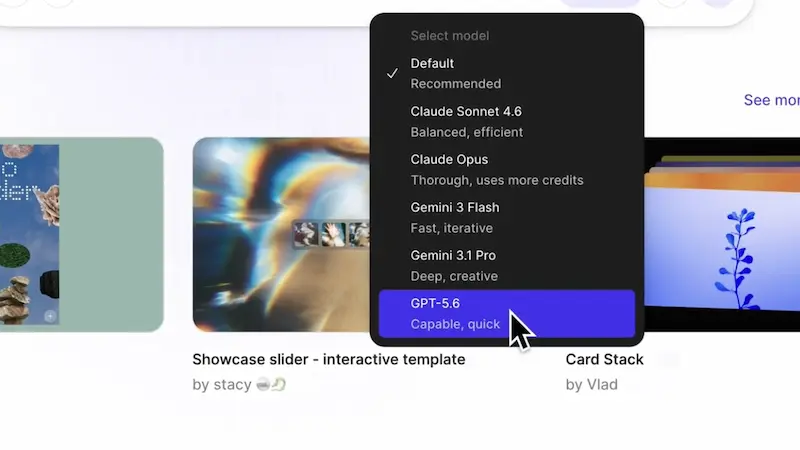
If you have been using Figma’s native AI features, you know that the “vibe coding” and prompt-to-UI space has evolved rapidly. With Figma Make now offering a true multi-model strategy, you can plug OpenAI’s latest flagship directly into your canvas.
Having spent the last few days putting the new flagship model—Sol—through its paces inside Figma Make, I am ready to break down exactly how this integration changes your daily workflow, where it shines, and how to avoid the hidden pitfalls of AI-generated layouts.
The GPT-5.6 Family: Why It Matters for Figma Designers
Before jumping into the canvas, it is important to understand what makes GPT-5.6 different from its predecessors. OpenAI launched the architecture in three tiers: Sol (the powerhouse flagship), Terra (the balanced, mid-tier option), and Luna (the lightning-fast budget model).
For Figma Make, Sol is the star of the show. OpenAI designed Sol as its premier reasoning and coding engine, and it currently leads the Artificial Analysis Coding Agent Index with a record-setting score of 80.
In practical terms, this means the model doesn’t just guess where buttons should go; it understands logical layout constraints, UI component hierarchies, and interactive states better than any model we have tested before.
My Hands-On Experience: Building a Live App Widget
To test the true capabilities of GPT-5.6 in Figma Make, I skipped the basic “login page” prompt and went straight for something complex: a multi-state SaaS analytics dashboard widget. The widget needed to display a live revenue line graph, include dropdown filtering by date, feature a toggle between dark and light modes, and stay fully responsive.
When I triggered the Figma Make action panel and selected the GPT-5.6 Sol engine, the results were a massive leap forward compared to older iterations.
Instead of throwing a messy cluster of detached vector shapes onto the canvas, the engine built a clean framework utilizing native Figma variables for the light/dark modes. It automatically wired up the interactive prototype connections for the dropdown filters. It wasn’t perfect, but it shaved roughly two hours of manual wireframing down to a 45-second generation window.
Step-by-Step Workflow: Mastering GPT-5.6 in Figma Make
To get production-grade results out of this setup, you cannot rely on lazy, single-sentence prompts. Follow this battle-tested, step-by-step workflow to get the most out of the system.
Step 1: Configure Your Multi-Model Selector
Open your Figma project and open the AI actions menu (the sparkle icon in your toolbar). Navigate to the settings cog and ensure your API or workspace plan is pointing to the GPT-5.6 family. Choose Sol for comprehensive layout generation, or switch to Luna if you are simply doing rapid copy exploration or bulk layer renaming.
Step 2: Feed the AI Your Local Design System
GPT-5.6 excels at structural awareness. Before you prompt, toggle on the option to let Figma Make analyze your active local component library. This ensures the model pulls your existing buttons, typography styles, and color tokens rather than inventing generic ones out of thin air.
Step 3: Write a High-Intent, Context-Rich Prompt
When drafting your prompt, use structural, plain-English commands. Break your prompt down into three core pillars: Role, Component Hierarchy, and Behavioral Rules.
Example Prompt: "Act as a senior UI designer. Generate a responsive product card component using our active local design system tokens. The hierarchy must include a top-aligned image placeholder, an auto-layout header block with title and price text, a middle section for customer reviews (star rating icons), and a bottom-aligned 'Add to Cart' button. Rule: Use strict horizontal and vertical Auto Layout paddings—do not use absolute positioning."Step 4: Audit the Auto-Layout Hierarchy
Once Figma Make renders the design, immediately open your layers panel. GPT-5.6 Sol is highly efficient, but it can still occasionally slip up. Ensure that bounding boxes are set to “Hug” or “Fill Container” rather than hardcoded pixel widths.
The Good, the Bad, and the Honest Truth
As an independent creator or freelancer, your reputation relies on clean handoffs. Let’s look at an honest breakdown of what this integration can and cannot do right now.
The Good
- Instant Prototypes: The “Add Interactions” feature combined with GPT-5.6 connects complex user flows natively, allowing you to present interactive click-throughs to stakeholders immediately.
- Semantic Token Selection: Sol perfectly aligns colors and type scales to match standard WCAG AA accessibility frameworks if explicitly instructed.
- Fluid Code Handoff: In Dev Mode, exporting the generated components into clean React + TypeScript or Tailwind code feels remarkably seamless because the underlying structure is built logically.
The Bad (What to Watch Out For)
- The “Div Soup” Hazard: If your prompt lacks structural boundaries, the model defaults to deep nesting, creating endless auto-layout frames that clutter your project layers.
- Generic Brand Aesthetic: Because LLMs are trained on vast public datasets, the raw, unfiltered layouts look clean but visually safe. It provides an incredible foundation, but the true creative branding still requires your human touch.
Maximizing the Dev Mode & MCP Export
Once you are satisfied with the visual layout in Figma Make, the final frontier is shipping it. Thanks to Figma’s Model Context Protocol (MCP) servers, you can pipe the exact context of your GPT-5.6 generated Figma layers directly into external code editors like Cursor or VS Code.
This bridge completely redefines developer handoff. Because the initial layout was engineered by a model with elite coding benchmarks, the exported CSS and component structures require minimal refactoring.
Final Thoughts for Designers
GPT-5.6 in Figma Make isn’t here to replace the designer’s eye; it is here to obliterate the boring, repetitive tasks that eat up your profitable hours. By letting AI establish your initial structural drafts, map out your prototype paths, and organize your layers, you free up your mental bandwidth to focus on what clients actually pay top dollar for: unique brand strategy, delightful user experiences, and creative problem-solving.