A slow website costs you money every single hour it stays online. If a visitor clicks your link from a search engine or a social media bio and sits waiting for more than two seconds, they close the tab. They do not read your copy, they do not view your offers, and they certainly do not fill out your contact forms.
Worse yet, search engines openly penalize sluggish pages. With the introduction of strict performance standards like Interaction to Next Paint (INP), your site must not only load fast initially it must react instantly the moment a user clicks a button or opens a mobile navigation menu.
Over my years optimizing hundreds of self-hosted WordPress installations, I have learned that true optimization is not about installing three different caching plugins and praying for a green score. It is about removing the underlying blockages that slow down your server and browser rendering engines.
This guide provides an actionable framework to audit, clean, and accelerate your store, coaching site, or landing page to a sub-1-second loading speed.
The Core Performance Metrics That Matter
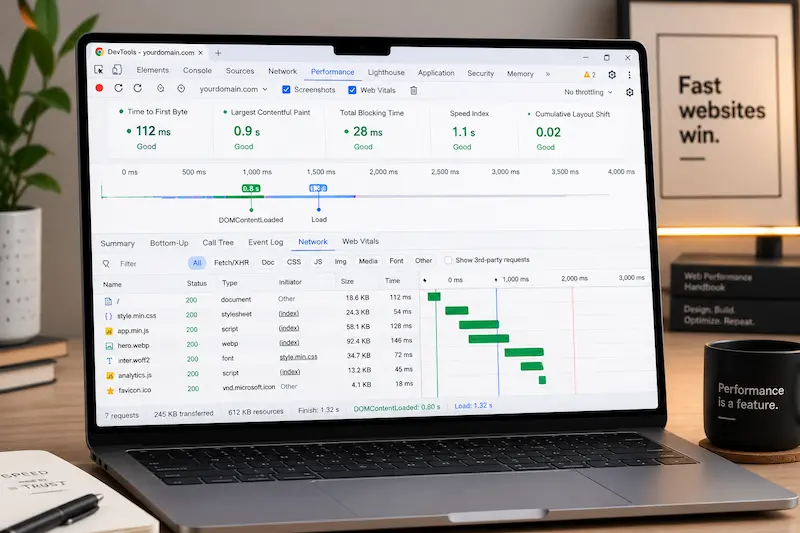
Before changing your settings, you must know what you are measuring. Stop obsessing over arbitrary grade scores and focus on these three user-centric performance metrics:
- Largest Contentful Paint (LCP): Measures how fast the main content block (usually your hero image or main headline) renders on the screen. Target: Under 1.8 seconds.
- Interaction to Next Paint (INP): Measures the interface responsiveness when a user interacts with the page (like toggling an accordion or filling a form). Target: Under 200 milliseconds.
- Cumulative Layout Shift (CLS): Measures structural stability. If your layout shifts around while loading, elements jump, causing users to misclick. Target: 0.
The Step-by-Step WordPress Speed Checklist
1. The Hosting and Server Infrastructure
No amount of optimization fixes a cheap, overloaded server. Your hosting setup forms the absolute ceiling of your potential site speed.
- [ ] Migrate to Isolated NVMe Hosting: Move away from low-cost shared hosting environments where your performance degrades based on neighboring traffic spikes. Use virtual private servers or managed hosting built on high-speed NVMe storage drives.
- [ ] Enforce HTTP/3 and PHP 8.3+: Check your hosting dashboard panels. Ensure your server runs PHP 8.3 or higher to process background data logic significantly faster than older versions. Turn on HTTP/3 to allow browsers to download multiple media assets simultaneously over a single network connection.
- [ ] Deploy Server-Level Object Caching: Enable Redis or Memcached directly on your server database. Instead of making WordPress query your database every single time a page loads, object caching stores frequently accessed queries directly inside the server memory for instant delivery.
2. Dominate Asset Optimization (The Real Bottleneck)
Heavy page builders and unoptimized theme files inject thousands of lines of unneeded code into your pages. You must strip out the weight.
- [ ] Configure Page Builder Features Wisely: If you run heavy frameworks like Elementor, navigate directly to
Settings > Features. Turn on Inline Font Icons, Flexbox Container, and Grid Layout. These native architectural features drastically reduce the number of nested HTML wrappers (the “div soup”) your visitor’s browser has to process. - [ ] De-register Unused Gutenberg and Core Styles: If you build your layouts entirely inside a page builder, WordPress still loads generic styles for block editors by default. Drop this clean, optimization script into your child theme’s
functions.phpfile to prevent these heavy files from loading on the frontend:
add_action( 'wp_enqueue_scripts', 'dequeue_unused_core_styles', 100 );
function dequeue_unused_core_styles() {
    wp_dequeue_style( 'wp-block-library' );
    wp_dequeue_style( 'wp-block-library-theme' );
    wp_dequeue_style( 'wc-blocks-style' );
}- [ ] Implement Image Prefetching and Modern Formats: Convert your entire asset media library to next-gen formats like WebP or AVIF. Never let a raw PNG or JPEG sit on your media server. For hero backgrounds above the fold, apply the
fetchpriority="high"attribute to signal to the browser that it must download that image before loading script files.
3. Smart Script Management and Caching Strategy
The fastest code is the code that never runs. Use asset managers to control exactly when and where plugins load.
- [ ] Unload Plugins on Specific Pages: A contact form plugin only needs to run its heavy JavaScript files on your contact page. Use an asset unloading utility to disable form scripts, review slider styling, and marketing pixels across your homepage and global articles.
- [ ] Defer and Delay JavaScript Files: Configure your optimization tool to defer non-essential scripts until after the text contents finish loading. Take it a step further by delaying heavy marketing trackers until manual user interaction (like scrolling or clicking). This instantly drops your initial loading times.
- [ ] Set Strict CSS Delivery Rules: Generate Critical CSS files for your layout framework. This extracts only the styling code needed to display what the user sees on their screen instantly, pushing the remaining styling data to load silently in the background.
Technical Performance Optimization Matrix
| Optimization Step | Typical Impact on Speed | Metric Directly Improved |
|---|---|---|
| Upgrading to NVMe Hosting & Redis | 300ms – 500ms reduction | Time to First Byte (TTFB) & LCP |
| Delaying Non-Essential JavaScript | 400ms – 800ms reduction | Total Blocking Time (TBT) & INP |
| Enforcing Modern Formats & Prefetching | 200ms – 400ms reduction | Largest Contentful Paint (LCP) |
| Declaring Fixed Dimensions on Images | Direct visual stabilization | Cumulative Layout Shift (CLS) |
The Honest Truth: The Trade-Offs of Extreme Optimization
Let’s look at the operational realities of performance management. Aggressive script minimization, merging, and asset delaying can occasionally break complex interface interactions.
If you bundle all your JavaScript together indiscriminately, your dynamic elements such as animated sliders, popups, or live Ajax checkouts may stop functioning entirely.
Never push speed optimization updates straight to your live website. Always run your adjustments on a staging server first. Test every link, form submit button, and interactive widget on both desktop and mobile layouts to confirm your site remains functional while running fast.
Execution Strategy
Do not let optimization overwhelm your daily routine. Start from the foundation this week. Check your server’s PHP version and enable object memory caching. From there, audit your active plugins and remove the scripts that fail to contribute to your core conversion goals. By systematically lightening your asset load, you build a sleek digital asset that converts cold traffic efficiently.